
Flow Director has its own MCP server. You connect an AI client such as Claude Code or Codex to an app, describe what the app should do, and the AI builds it: flows, dashboards, menu entries. This page walks through the three steps shown in the video and uses the same example.
How it works
The AI works through the real Flow Director user interface in your browser tab. It reads the screen and clicks, types and drags like a user would. It sees what you see and can do what you can do – nothing more and nothing less. Everything it builds is a normal Flow Director app that you can open, edit and extend yourself.
Before you start
-
License: one Flow Director App license unlocks the MCP server. An admin assigns it in the System app with the MCP License button in the toolbar, or starts a 30-day trial there. With it you can build any number of apps – the apps themselves need no license.
-
Admin user: AI sessions are available to admin users only. The AI session button is not shown to other users.
-
Your own app: MCP works for apps you created yourself. It is not available for the System app, licensed apps, apps installed from the Flow Director repository (including demo apps and the Explorer), and smart apps.
-
AI client: Claude Code or Codex (ChatGPT) installed on your computer.
Step 1: Create an empty app
-
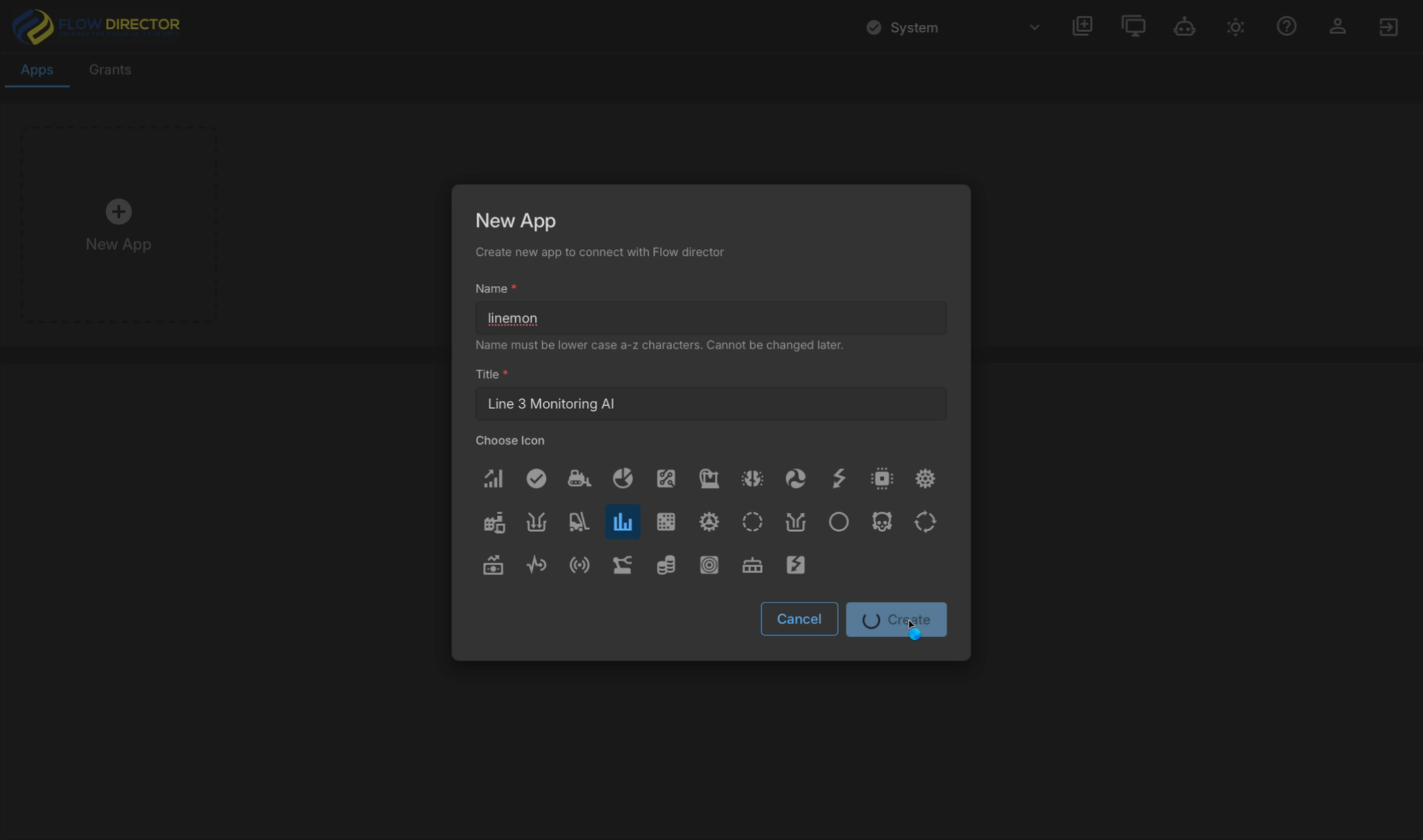
In the System app, open Apps and click New App.
-
Enter a name (lowercase, at least 2 characters; it cannot be changed later) and a title, and pick an icon.
-
Click Create. The app is created empty: no flows, no dashboards.
Step 2: Pair your AI client
-
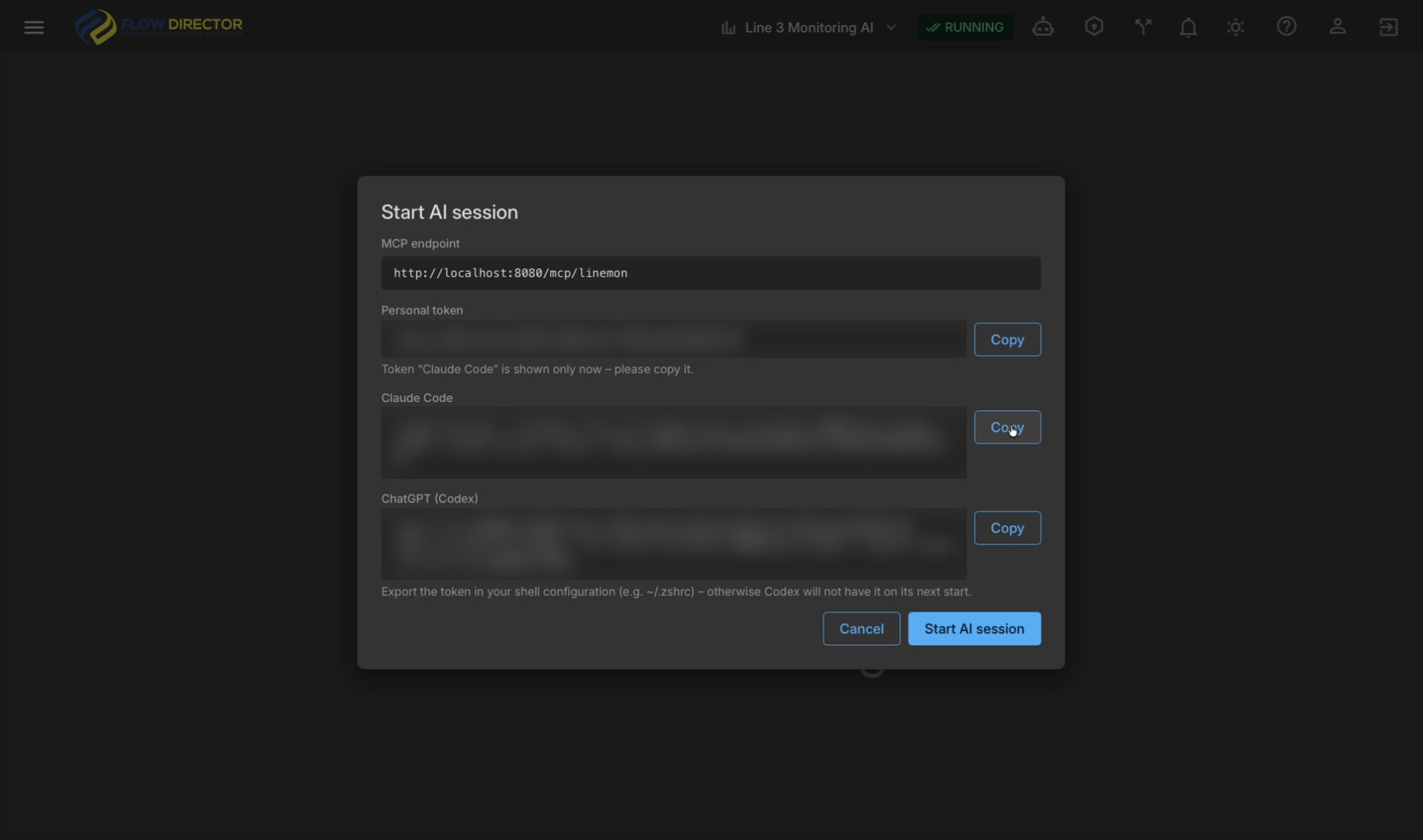
Open the new app and click the AI session button in the toolbar. The Start AI session dialog opens.
-
Enter a label for the token (for example
Claude Code) and create the token. The dialog shows:-
the MCP endpoint of the app,
<server>/mcp/<app name> -
your personal token
-
a ready-to-paste command for Claude Code and one for Codex
-
-
Copy the command for your AI client and click Start AI session. The dialog now waits for the AI client.
-
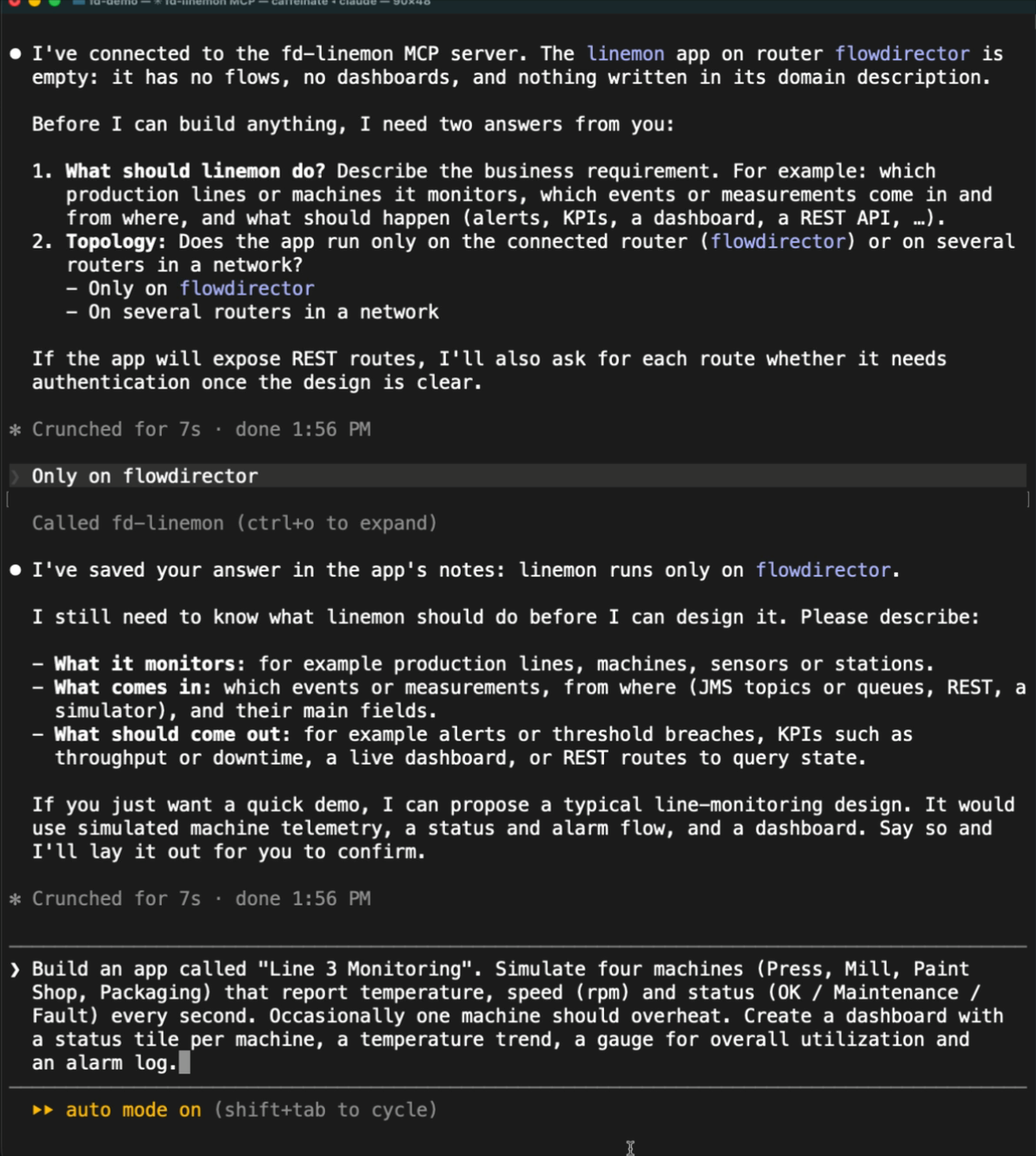
Run the command in a terminal, start your AI client and tell it to use the app's MCP server.
For Claude Code, the command looks like this:
claude mcp add --transport http fd-linemon http://localhost:8080/mcp/linemon \
  --header "Authorization: Bearer <your token>"
claude
> use fd-linemon mcp
For Codex, the dialog shows an export line for the token and a codex mcp add command. Add the export line to your shell configuration (for example ~/.zshrc), otherwise Codex will not have the token on its next start.
The token is shown only once. Treat it like a password: do not share it, and do not show it in screenshots or recordings.
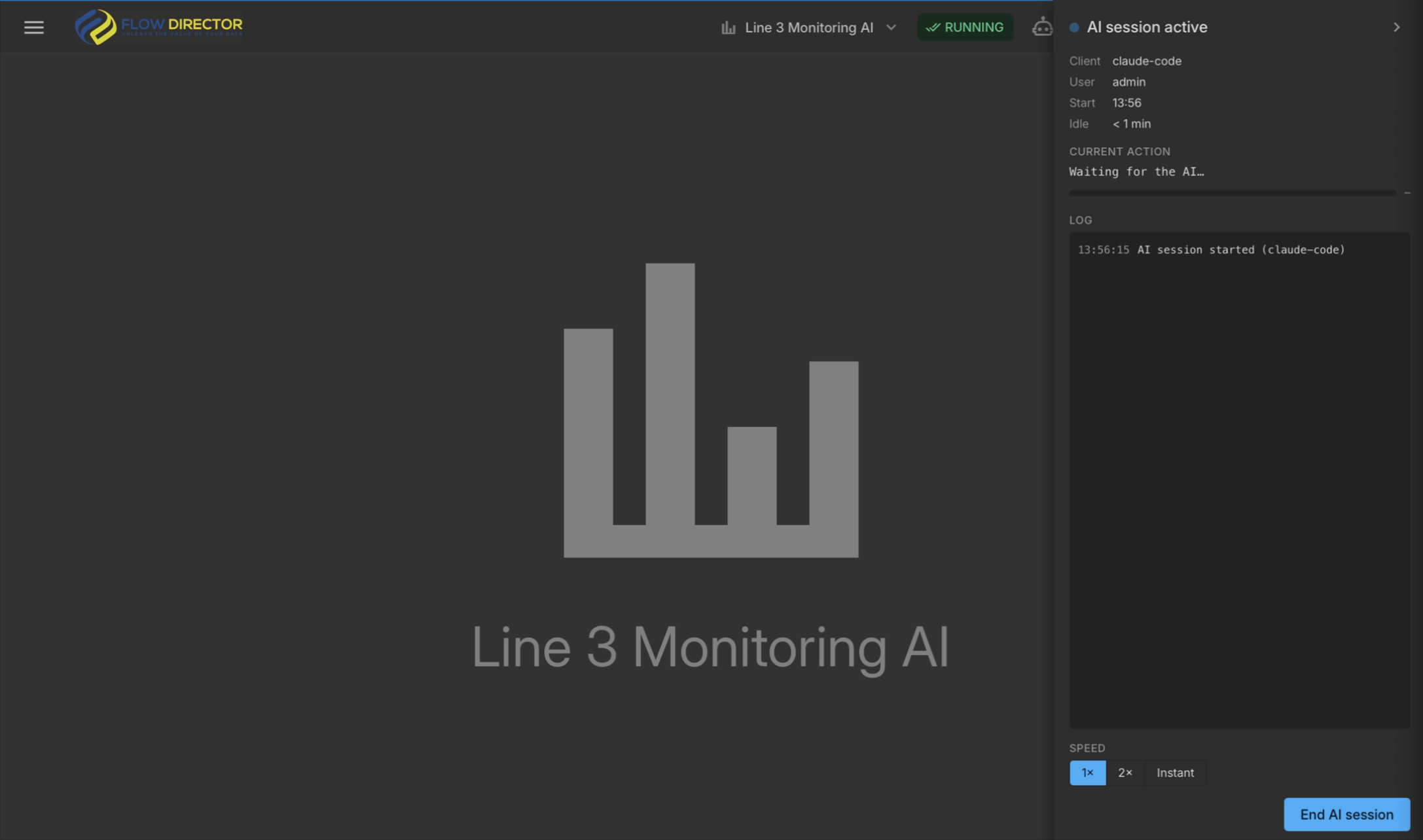
As soon as the AI client connects, Flow Director shows the AI session panel: client, user, start time, the current action and a log of every step the AI takes. Speed controls how fast the AI's actions are played back in your tab. End AI session ends the session.
Step 3: Describe the app
Describe what you need in plain language. Useful things to include:
-
What the app monitors or processes: production lines, machines, sensors, stations, queues …
-
What comes in: which events or measurements, from where (JMS topics or queues, REST, a simulator), and their main fields.
-
What should come out: alerts or threshold breaches, KPIs, a live dashboard, REST routes.
-
Topology: one router or several routers in a network.
If something is missing, the AI asks. Before it builds anything, it proposes a design – flows, message contents, dashboard widgets, stored state – and asks whether it fits. It only starts building after you confirm.
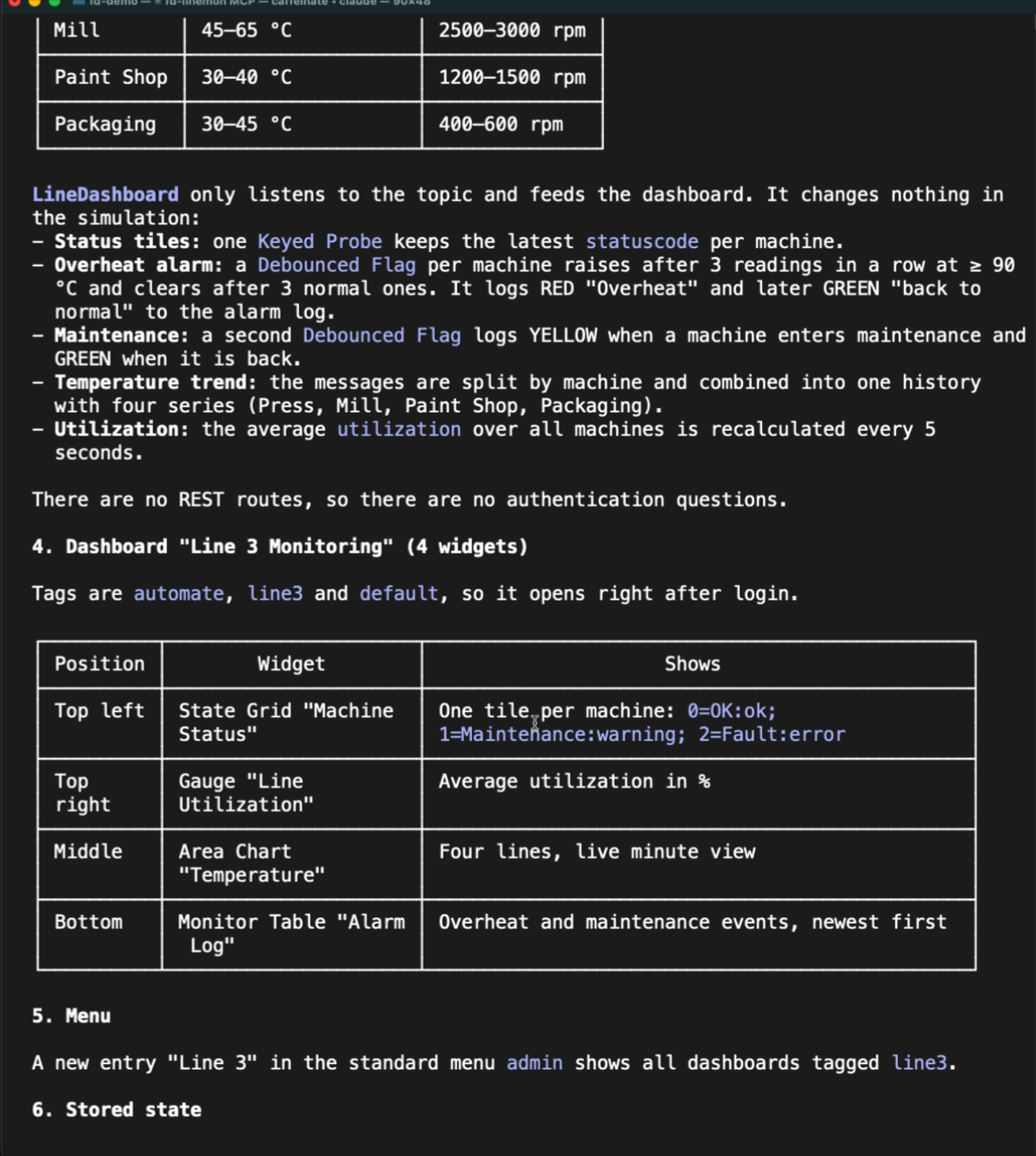
Example from the video
First prompt – a monitoring app with simulated machines:
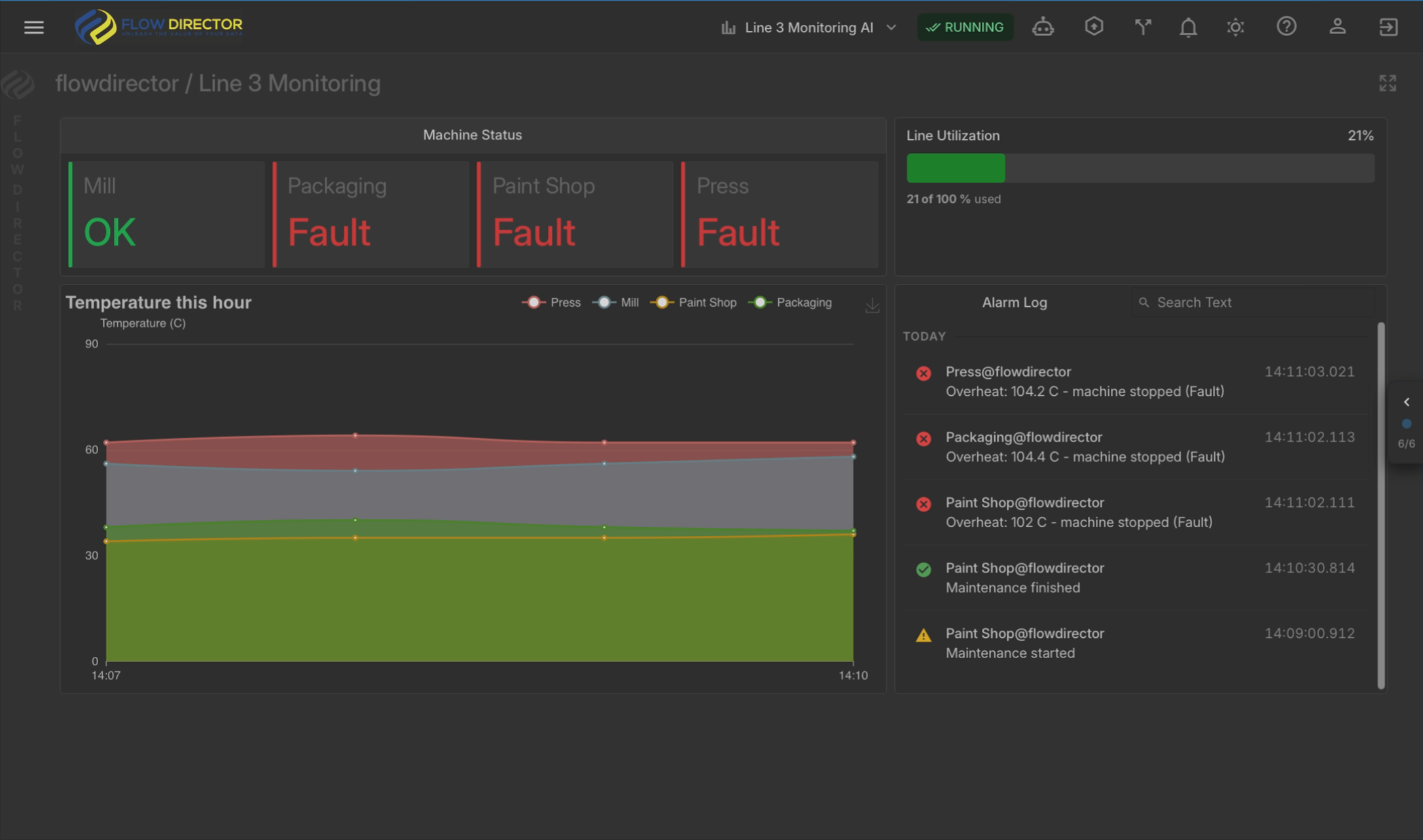
Build an app called "Line 3 Monitoring". Simulate four machines (Press, Mill, Paint Shop, Packaging) that report temperature, speed (rpm) and status (OK / Maintenance / Fault) every second. Occasionally one machine should overheat. Create a dashboard with a status tile per machine, a temperature trend, a gauge for overall utilization and an alarm log.
Second prompt – extending the same app:
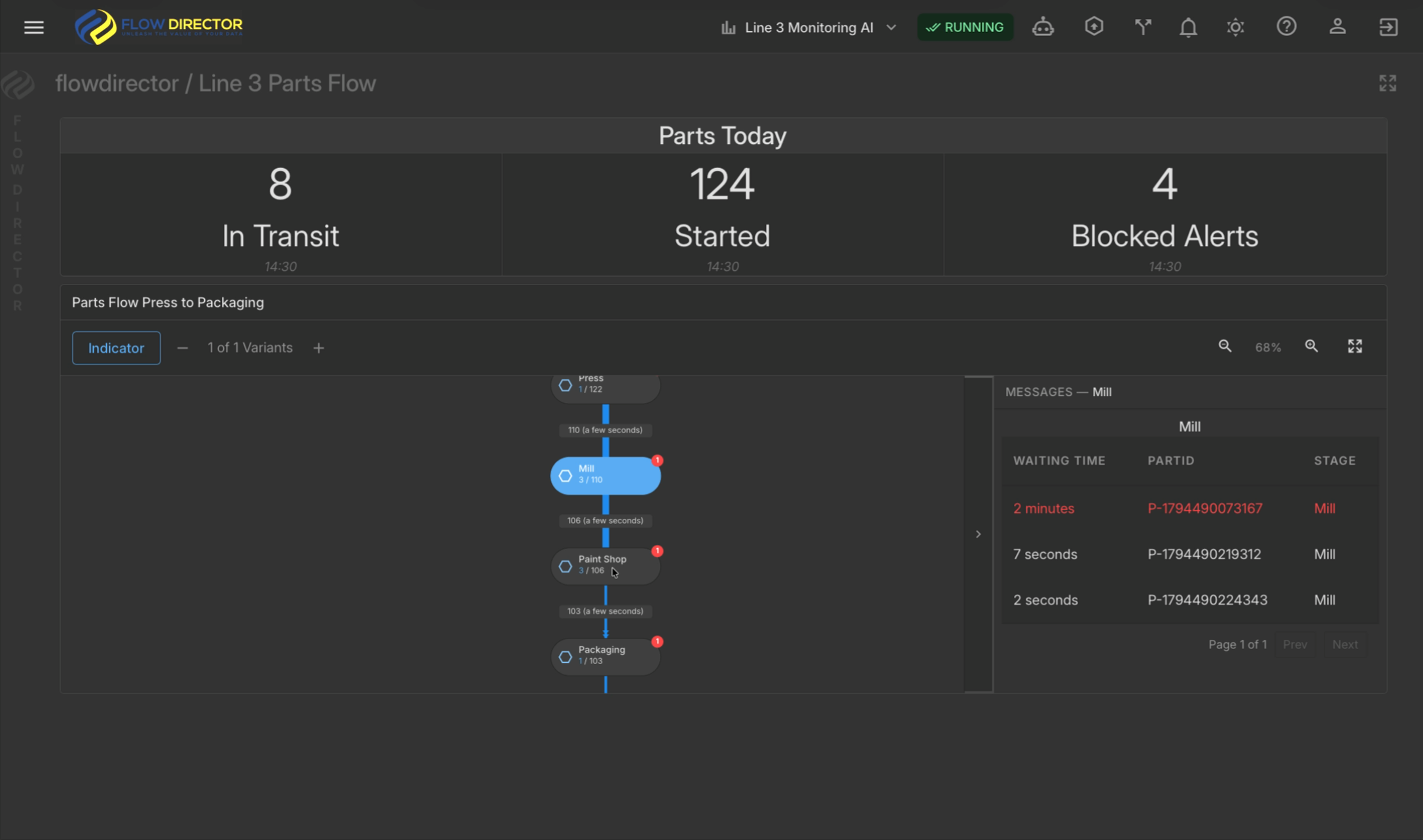
Show another dashboard with parts moving through the line from Press to Packaging
Result: machine simulator flows built from one template, a dashboard flow, the Line 3 Monitoring dashboard with status tiles, temperature trend, utilization and alarm log, and a second Line 3 Parts Flow dashboard with part counters and a process diagram.
What happens during the session
-
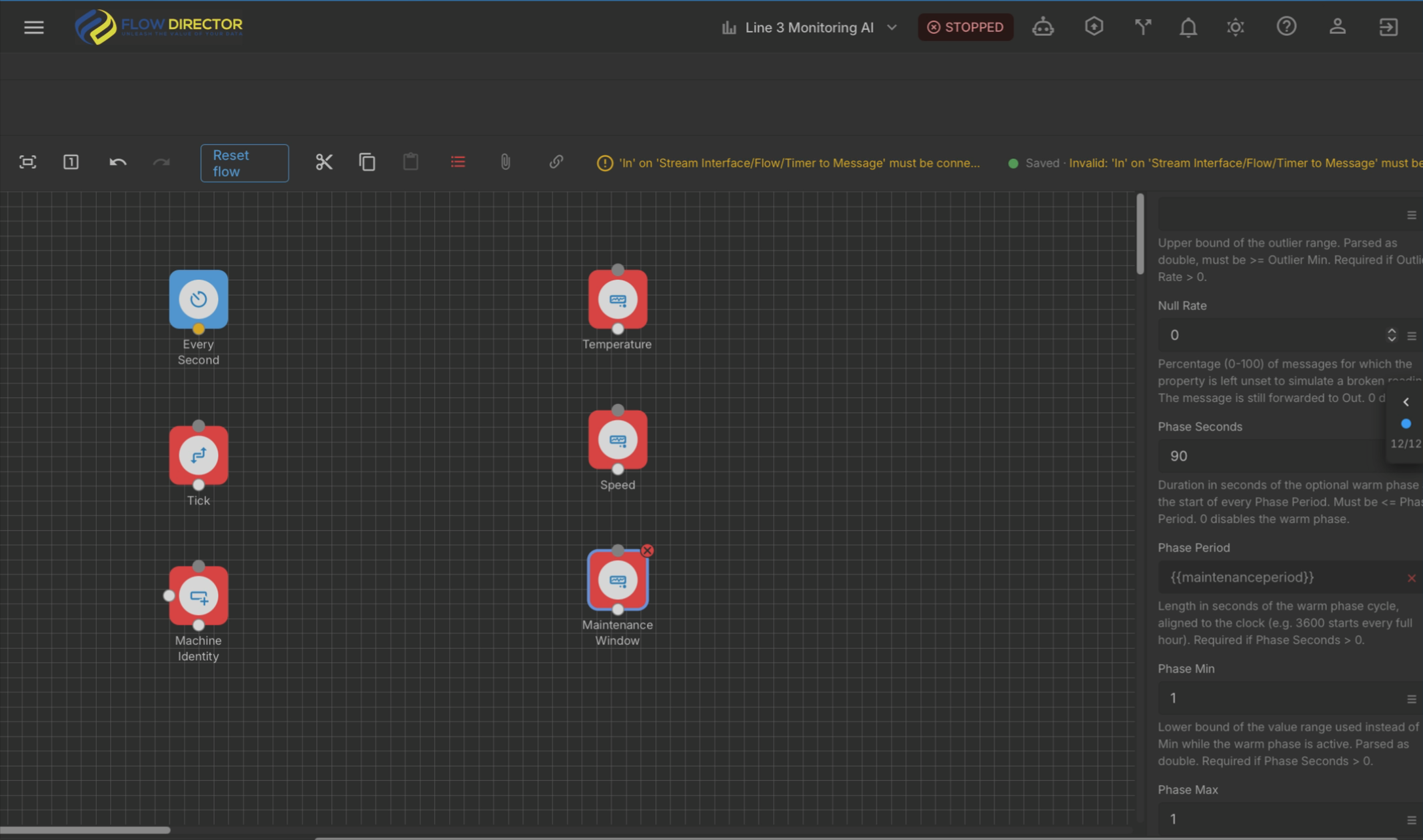
The AI uses the normal UI. You can watch every step in your tab. The same editors, dialogs and dashboards are used as when you build an app by hand.
-
The app may be stopped while the AI edits it. It is started again when the session ends.
-
The AI checks its own work. It activates the app, reads the app log, looks at messages in the Flow Viewer and checks the dashboards. If something does not behave as designed, it looks for the cause and fixes it.
-
Setup contracts: for apps with a setup wizard, the AI writes the setup contract, but only you apply it by clicking Finish in the setup wizard.
Ending the session
Click End AI session in the AI session panel. You get a summary of the session, including the number of actions, and you can download the full log. A session also ends after 30 minutes without activity, when the server restarts, or when the MCP license is removed.
After the session, the app is a normal Flow Director app. You can change it by hand or start a new AI session to extend it.
Tips
-
Start with one clear goal per prompt. Extend the app with follow-up prompts instead of describing everything at once.
-
Read the design proposal before you confirm. Changing the design is cheaper than changing the built app.
-
Say what you want to see on the dashboard – the AI picks the widgets, but your wording guides the choice.